
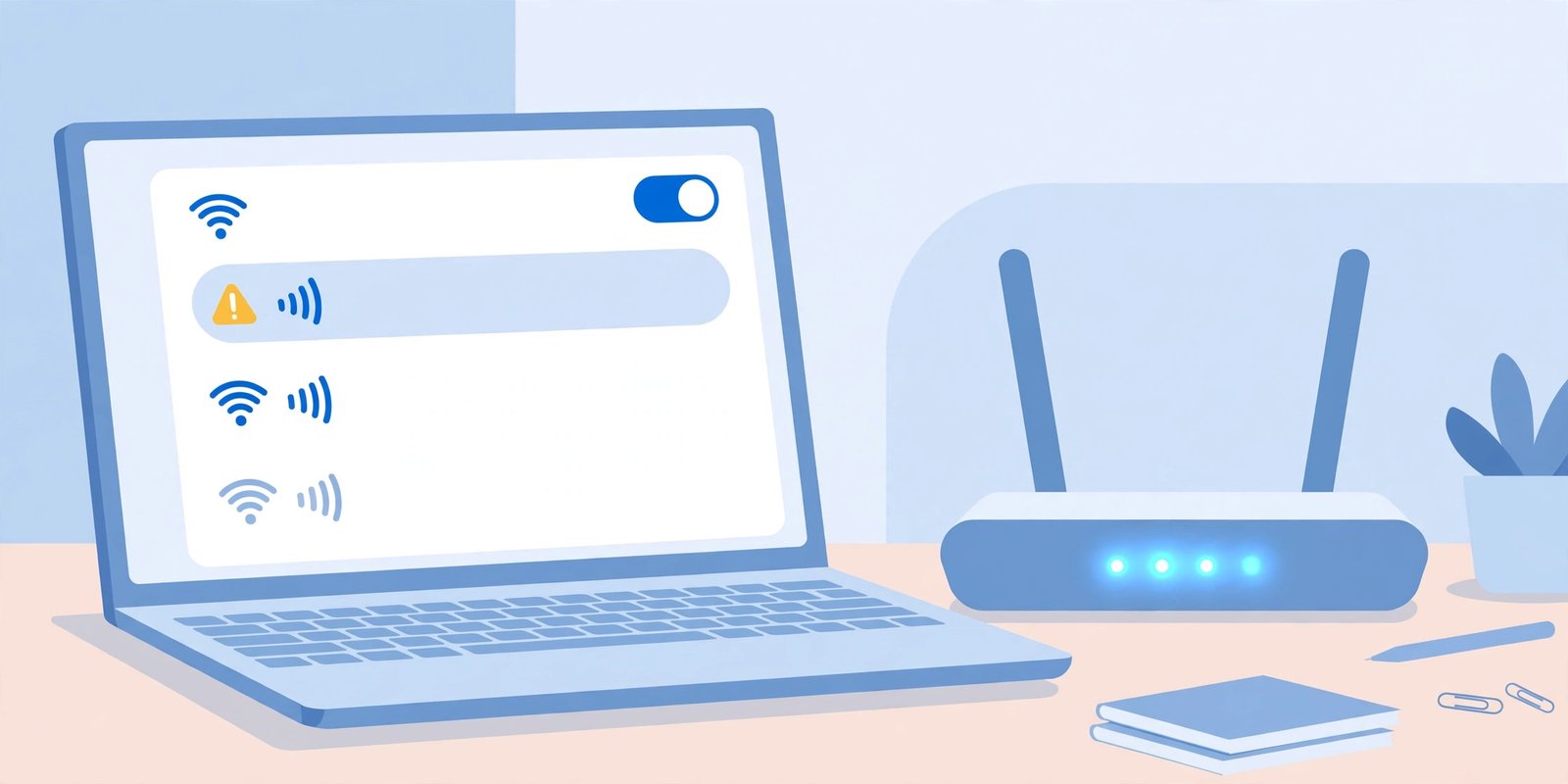
Wi-Fi connected but no internet on Windows 11 usually means your PC joined the network but got no working IP address or DNS. Check your IP address first. If it starts with 169.254, your PC never reached the router. Restart the router, forget the network and reconnect, then flush DNS. This guide walks through each check in order, so you fix the real fault instead of guessing.
Windows shows the “No Internet, Secured” message when it cannot reach the internet, even though the Wi-Fi radio link works. The message tells you the test failed. It does not tell you why. That is why the order matters. Each check below rules out one part of the chain, from your PC to the router to your internet provider.
The 10-second check: what your IP address tells you
Start here. It takes 10 seconds and it tells you where the fault sits.
Press the Windows key, type cmd, and open Command Prompt. Type ipconfig and press Enter. Look for the Wi-Fi adapter section and find the IPv4 Address line.
If the address starts with 169.254, your PC never got a proper address from the router. Windows gave itself a placeholder address, and nothing will load. The fault is between your PC and the router, usually DHCP. DHCP is the service on the router that hands out IP addresses. Skip to the PC fixes below.
If the address looks like 192.168.x.x or 10.x.x.x, your PC did get an address. The fault is further along, most likely DNS or the connection between the router and your internet provider. DNS turns website names into addresses your PC can use. If DNS fails, nothing loads even though the connection works.
Also note the Default Gateway line. That is your router’s address on the network. You will use it in the next section to test whether the router itself answers.
Is it the PC or the router?
Before you change any setting, find out which device is at fault. Turn off mobile data on your phone so it is forced to use Wi-Fi, then try to load a web page on the same network.
If your phone cannot load anything either, the problem is the router or your internet provider. Skip ahead to the router section. Changing settings on the laptop will not help.
If your phone works fine, the problem lives on the Windows 11 machine. Work through the PC fixes below.
One more test helps when you are unsure. Connect the laptop to your phone’s mobile hotspot. If the laptop loads pages on the hotspot, the home router is the suspect. If it still shows no internet on the hotspot, the fault is on the laptop.
Fix it on the PC: forget the network, restart the adapter, flush DNS
Work through these in order. Test the connection after each one, so you know which fix worked.
1. Run the troubleshooter. Go to Settings, then System, then Troubleshoot, then Other troubleshooters. Run the Network Adapter troubleshooter. It catches common faults on its own, and it is free.
2. Forget the network and reconnect. Go to Settings, then Network and internet, then Wi-Fi, then Manage known networks. Select your network and click Forget. Then select the network again and type the password. A saved network profile can go stale after a router password change or a settings change, and forgetting it forces Windows to start clean.
3. Restart the Wi-Fi adapter. Go to Settings, then Network and internet, then Advanced network settings. Turn the Wi-Fi adapter off, wait 10 seconds, then turn it back on. This clears a stuck adapter without touching your saved networks.
4. Release and renew your IP address. Open Command Prompt as an administrator. Type ipconfig /release and press Enter, then type ipconfig /renew and press Enter. This asks the router for a fresh address. If you had a 169.254 address, check ipconfig again now. A normal 192.168 address means the fix worked.
5. Flush DNS. In the same Command Prompt window, type ipconfig /flushdns and press Enter. This clears remembered DNS failures. Then try loading a website.
6. Try a different DNS server. If pages still will not load but you can reach the router, the DNS server may be the fault. Go to Settings, then Network and internet, then Wi-Fi, then your network, then IP assignment, and click Edit. Switch to Manual, turn on IPv4, and enter 8.8.8.8 as the preferred DNS server and 8.8.4.4 as the alternate. These are Google’s public DNS servers. Cloudflare’s 1.1.1.1 works too. If the internet returns, your old DNS server was the problem.
7. Check the date and time. A wrong clock can break secure connections, because security certificates depend on the time. Go to Settings, then Time and language, then Date and time, and turn on Set time automatically.
Fix it on the router: restart order, cable check, channel check
If every device is offline, the router or the modem is the problem. Restart them in the right order.
Unplug the modem and the router from the wall. If you have one combined box, unplug that. Wait a full 60 seconds. This lets the equipment clear its memory and drop its old session with your provider. Plug the modem in first and wait until its lights settle, usually one to two minutes. Then plug the router in, if it is a separate device.
Next, check the cables. The cable between the modem and the router should sit firmly in the WAN port, usually marked in a different colour. Try another Ethernet cable if you have one. A loose or damaged cable is a common cause, and it is easy to miss.
Finally, check the Wi-Fi channel. If the connection drops at the same time each evening, a neighbour’s network may be crowding yours. Log in to the router admin page, usually at the Default Gateway address from the first section, and try a different channel. On 2.4GHz, use channel 1, 6 or 11. On 5GHz, leave the channel on Auto.
While you are in the router settings, it is worth checking that your network is set up safely. Our guide explains how to secure your home Wi-Fi, including the password and encryption settings to use.
When a VPN or captive portal is the real cause
Sometimes the network works fine, and something on the PC blocks it.
A VPN can block everything. Turn the VPN off and test the connection. Some VPNs have a kill switch that blocks all traffic when the VPN drops. If the internet returns with the VPN off, the VPN is the cause. Update the VPN app or check its kill switch setting.
A proxy can do the same. Go to Settings, then Network and internet, then Proxy. Turn off any manual proxy you did not set up yourself. If this is a work laptop, ask your IT team first, because your company may require a proxy.
A captive portal can look like no internet. Hotel, airport and cafe Wi-Fi often needs a sign-in page before it lets you online. Open a browser and visit a plain website to trigger the sign-in page. Turn the VPN off first, because a VPN can block the portal page from loading.
Public Wi-Fi also asks you to trust a network you do not control. The TfL data breach exposed the personal details of 265,000 Oyster customers, so treat every public network with care. Avoid banking on public Wi-Fi unless you use a VPN.
The last resort: network reset and driver reinstall
If nothing above worked, reset the network stack. Go to Settings, then Network and internet, then Advanced network settings, then Network reset, and click Reset now. This removes all saved Wi-Fi networks, VPN settings and virtual network switches. It does not delete your files. You will need to reconnect to Wi-Fi and type the password again, and you may need to reinstall VPN software.
If the fault survives a network reset, the Wi-Fi driver may be corrupt. Open Device Manager, expand Network adapters, right-click your Wi-Fi adapter and choose Uninstall device, then restart the PC. Windows reinstalls the driver on startup. For the latest driver, download it from the laptop maker’s website using another device, then install it from a USB stick.
One last test settles the question. Plug the laptop into the router with an Ethernet cable. If Ethernet works but Wi-Fi does not, the Wi-Fi adapter itself may have failed. If the laptop is still under warranty, contact the maker before opening it up.
FAQs
Why does it say “No Internet, Secured”?
Your PC joined the Wi-Fi network and the connection is encrypted, but Windows could not reach the internet. It is a symptom, not a diagnosis. Work through the checks above, starting with the IP address, to find the real fault.
Why does Wi-Fi work on my phone but not my laptop?
The router and the internet connection are fine, so the fault is on the laptop. The usual causes are a stale network profile, a bad IP address, a DNS failure, a VPN kill switch or a driver problem. Start with the PC fixes in this guide.
Will a network reset delete my files?
No. A network reset only removes network settings: saved Wi-Fi passwords, VPN settings and virtual network switches. Your files, apps and photos stay untouched.
How do I know if my ISP is down?
Check the router lights, try another device on the same Wi-Fi, and check your provider’s status page from your phone on mobile data. If every device is offline and the modem lights show no connection, the fault is with the provider, not your PC.
Should I change my DNS to fix it?
Only as a test. If 8.8.8.8 works and your provider’s DNS does not, the fault is DNS. You can keep the change, but note it down so you can undo it later if you need to.
Conclusion
Wi-Fi connected but no internet on Windows 11 is almost always one of a few faults: a bad IP address, a stale network profile, DNS, the router, a VPN or a captive portal. Check the IP address first, test another device to find out whether the fault is on the PC or the router, then work through the fixes in order. Save the network reset for last. Most cases are fixed within 10 minutes, without a repair shop visit.